

TechTablets › Forums › Teclast Forums › X98 Air 3G / Air II – Single and dual boot › how do i Flash mirek190 v4
- This topic has 56 replies, 14 voices, and was last updated 10 years, 1 month ago by
riky pangestu.

-
AuthorPosts
-
July 14, 2015 at 8:29 pm #7004
Hi guys so I have a air 3g model c8j6 and am wondering how to flash a ROM system only without touching my data windows or partition’s. I know this canbr done and am seeking help how to do so.I have rooted the tablet and downloaded the ROM and installed adb but I do not by bios type or whether that needs to be change somehow.Please give me some guidance as to what to do for this as I have no experience with flashing ROMs on this tablet
Many thanks ethan
July 14, 2015 at 10:50 pm #7008[FONT=”Tahoma”]TTT[/FONT] TecKnight’s Teclast Tutorials series
Flash a custom Android image (ROM) to your X98 Air device, leaving Windows untouchedProcedure: Flash a custom Android image (ROM) to your X98 Air device, leaving Windows untouched
Required:
1. A Windows Host PC with the Manufacturing Flash Tool (MFT) installed and configured.
If you have a Windows PC, but need to install and configure the MFT, Try This Tutorial first.
2. Teclast X98 Air device with at least 50% battery charge
3. USB A to Micro USB cable
4. A downloaded Android ROM image that you intend to flash to your device. I would recommend downloading one of Mirek190’s fine ROMs from here:
[INDENT]https://drive.google.com/folderview?id=0B8BF9-TGlz-FfkhLa21GSFJtMFV5b3luNXBjZlcwUzZTUHlIaGtBalJOWHBaZEdMcTYtUTA&usp=sharing#list[/INDENT]Step by Step instructions:
1. Extract the ROM you will be installing to a folder on your Windows Host PC. I have selected Mirek’s V3 Lollipop image.
2. Launch the MFT using the desktop shortcut that looks like this:
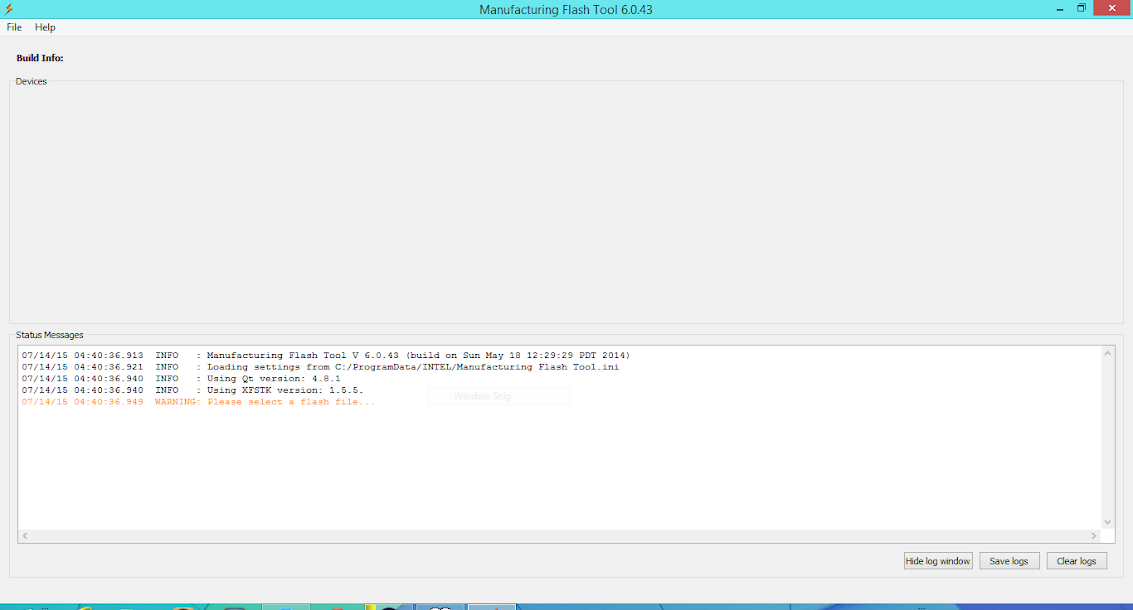
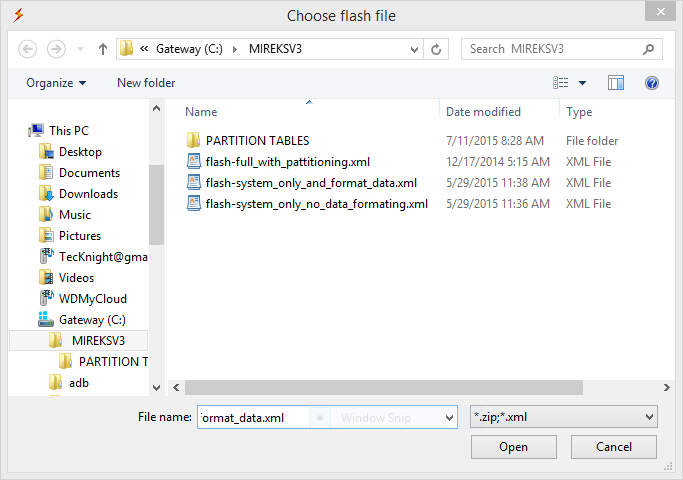
The MFT Application looks like this:3 Within the MFT, select the File menu, then Open. This brings up the XML selector dialog, which looks like this:
4. Using the MFT‘s XML selector dialog, browse to the folder containing your extracted ROM.
You should see the following options (wording may vary):
[INDENT]flash-full_with_partitioning
flash-system_only_and_format_data
flash-system_only_no_data_formating[/INDENT]
We cannot select flash-full_with_partitioning, as this option deletes all existing partitions before repartitioning and flashing. This would not leave the Windows installation untouched. Both remaining options will leave Windows untouched, but have slightly different behavior.
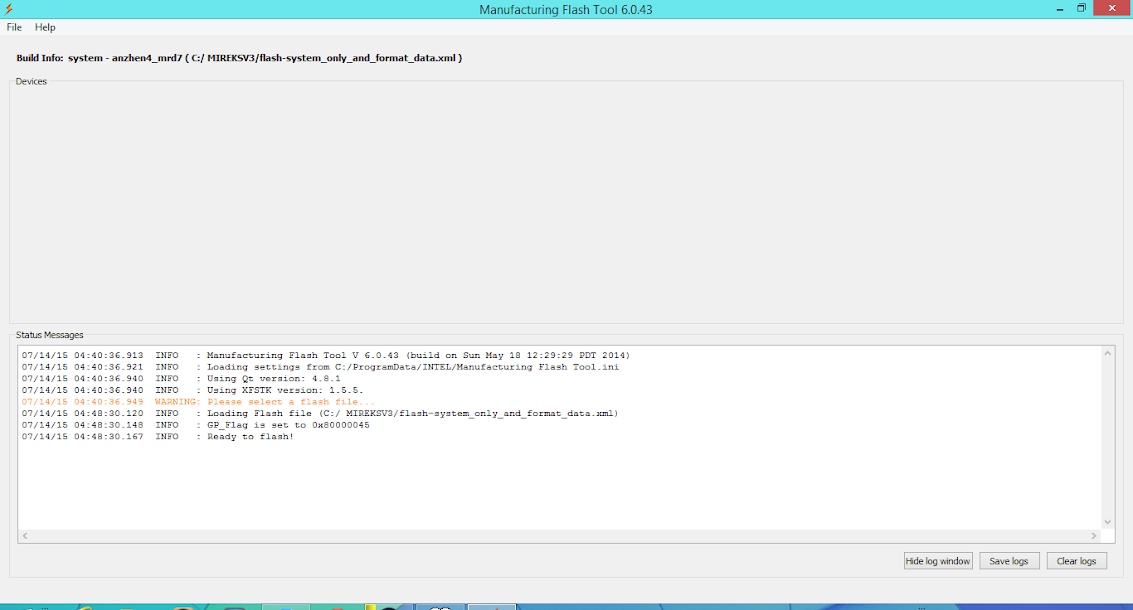
flash-system_only_and_format_data is the recommended option for the cleanest Android install, but it does wipe any user settings and Apps you had installed before the flash. I’m used to starting from scratch and I want my Lollipop to be as clean of an install as possible, so I select this option using the XML selector dialog of the MFT. If I wanted to keep my settings and installed user apps, I could select flash-system_only_no_data_formating
MFT is now ready to flash. The flash will be triggered by the detection of a Baytrail device on the Host PC’s USB bus.5. Connect the USB cable to the Host PC, but not to the tablet just yet.
6. Power up your X98 Air device by holding down the power button, volume+ and volume- until your device enters DnX mode. If you do it right, you will see:
[INDENT]Entering DnX mode
Waiting for Fastboot command [/INDENT]
in small letters in the center of the display.
7. Find a stable place to set down your X98 Air device, then connect the MicroUSB end of the USB cable to your device.
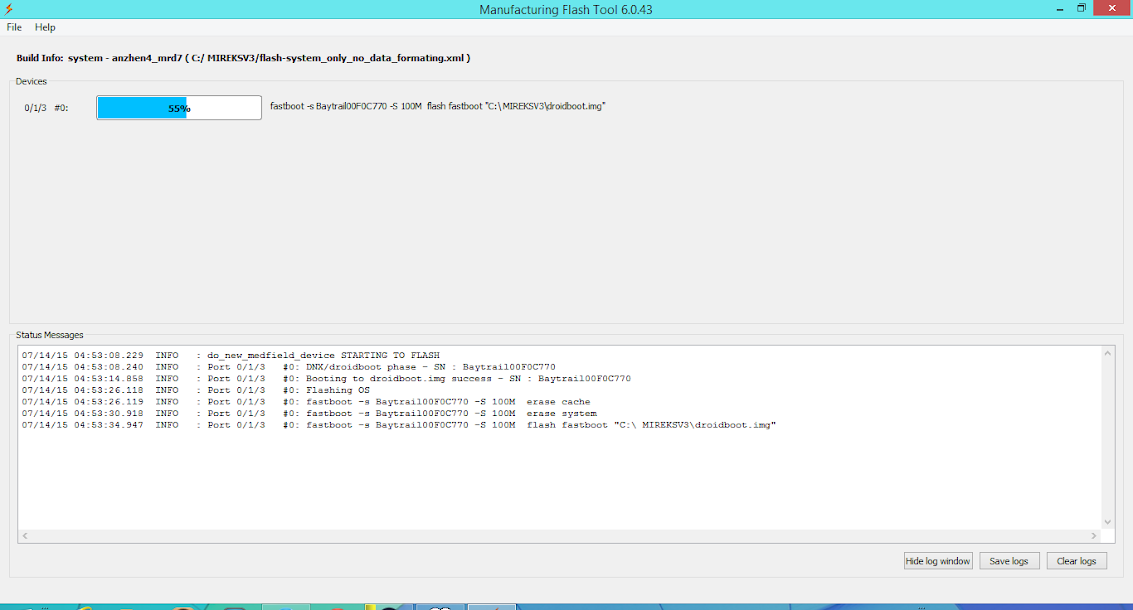
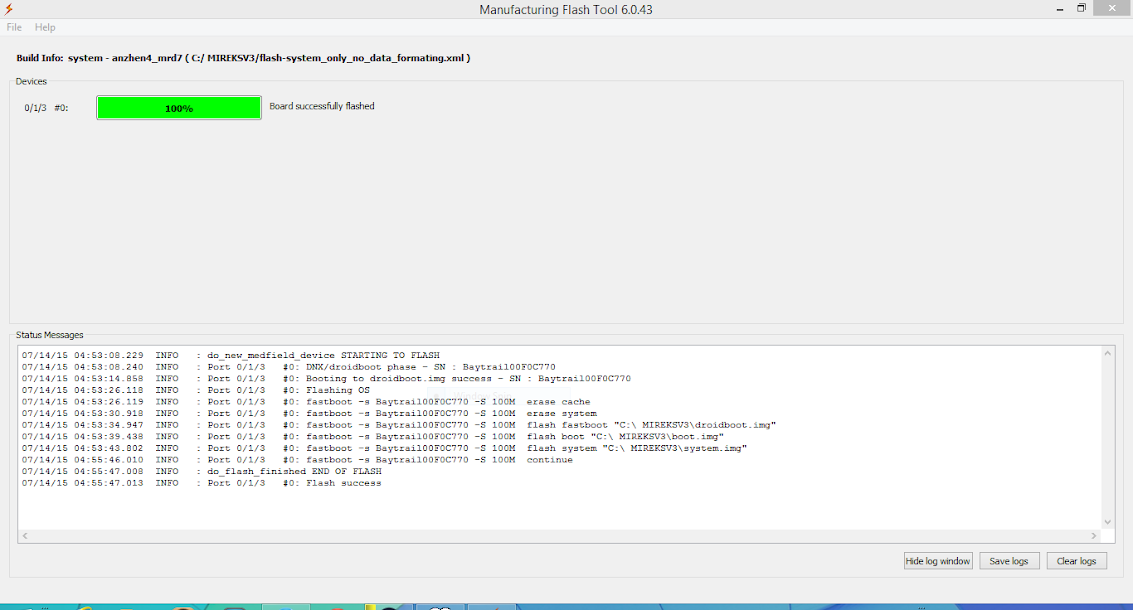
8. MFT should now detect your X98 Air device and immediately begin the flashing process. MFT will display a progress bar indicating the percentage completed, like this:The progress bar might seem to hang at about 80%, but give it some time and it will complete.
9. Once the MFT indicates flashing is complete:disconnect the USB cable from the tablet and Host PC.
10. Power up your tablet and boot into your new Android ROM !!July 14, 2015 at 11:00 pm #7009If you need to install Manufacturing Flash Tool to PC:
URL=”http://forum.xda-developers.com/showpost.php?p=61731608&postcount=9841″%5D[FONT=”Tahoma”]TTT[/FONT] TecKnight’s Teclast Tutorials series[/URL]
Install and Configure the Intel Mfg Tools on a Windows Host PC
Procedure: Install and Configure the Intel Mfg Tools on a Windows Host PC
Required:
1. A PC running Windows 7 or higher with an available USB port
2. Teclast X98 Air device
3. USB A to Micro USB cable
4. Intel_Mfg_Tools_X98_Custom.zip, A customized installer of Intel Mfg Flash Tool bundled with the required drivers, a preconfigured .INI and 2 .BAT files to perform the installation.
Download Intel_Mfg_Tools_X98_Custom.zipStep by Step instructions:
1. Extract Intel_Mfg_Tools_X98_Custom.zip to a folder on your target Windows PC.
2. Browse to the folder and launch:
1-InstallDrivers.bat
3. The batch file will install the 2 needed driver packages in the appropriate order, first
the iSoC drivers ver 1.2, then the Intel Android drivers, ver 1.9
If either installer reports you already have a version of the driver installed, just let it uninstall the
old driver and install the new one.
4. Once both driver sets are installed, the .bat file will ask you to connect your tablet to USB.
Do as the script asks.
5. Launch:
2-InstallandConfFlashTool.bat
6. The installer will proceed to install the Flash Tool. When complete, the batch file asks you to press a key
to copy the custom configuration to the appropriate folder.
7. Press a key.
8. The script now advises that the custom configuration has been applied. press a key to close the window.
Congratulations, your Flash Tool is now installed and configured.July 15, 2015 at 6:18 am #7017WOW great reply thanks a lot for your help I will go through the process when I get home seems very reliable and well written thanks a lot! Just a quick question though which is better mirek v4 which is KitKat or v3 which is lollipop but older?
July 15, 2015 at 3:58 pm #7026Thumbs up Randy
July 15, 2015 at 8:11 pm #7038New here. Everytime I try and use the IMT flash tool everything seems font till 12% then just stops? Any ideas? Thank
July 15, 2015 at 8:20 pm #7039I personally like V3 better. It’s faster and the UI is smoother.
July 15, 2015 at 8:21 pm #7040Sweet guide – thanks.
I’m trying to flash an HG9M, with the Mirek v4.0 ROM
But the ManufacturingFlashTool.exe keeps crashing at 5 or 12%
(Last Log entry: Disabling xFSTK Misc DnX)
Im trying to flash from win8.1 64bit.Any suggestions?
July 15, 2015 at 8:44 pm #7041Rob, try uninstalling then reinstall the MFT using this method:
http://forum.xda-developers.com/showpost.php?p=61847947&postcount=10126
I have created a batch file that installs and preconfigures MFT with all needed changes.July 15, 2015 at 11:41 pm #7063Thanks will give it a try and let you know.
July 16, 2015 at 2:21 am #7070Lasse, try uninstalling then reinstall the MFT using this method:
http://forum.xda-developers.com/showpost.php?p=61847947&postcount=10126
I have created a batch file that installs and preconfigures MFT with all needed changes.
Make sure you let the driver installers unonstall any existing drivers before they install the new oneJuly 16, 2015 at 3:29 am #7071Nope won’t work. Still stops at 12%. What about making a update.zip file and flashing it with the recovery?
July 16, 2015 at 4:44 pm #7078I keep getting error. (E:no valid installer median found) then nothing happens. I can reboot fine and go into windows and android but just can’t update anything. Its been rooted and USB debug is on. Any idea’s? Thank for the help.
July 16, 2015 at 7:44 pm #7081Thanks for the update.
I have tried that, but still same error.
It might be my laptop that needs a reinstall, I will create a HDD with a fresh installed win7 – and retry.
I will report back.July 17, 2015 at 10:55 am #7105OK – it seems like my windows installation was the issue.
I installed a fresh copy for Win7 and installed the drivers and tool.The flash was progressing, but at 6% it gave “[FAILURE] IFWI flash failure”
I have repeated the process and same issue.Now the tablet will not boot, I can still enter DnX mode (and the bios by pressing ESC on a Keyboard)
Just a note – I wanted to remove Windows, so I used “flash-full_with_REPARTITION” – was that a very bad idea?
Am I lost – or are the hope for my quest for a cleaner Android on my China-Tablet 🙂
Log from Manufacturing Tool:
07/17/15 12:34:59.089 INFO : Manufacturing Flash Tool V 6.0.43 (build on Sun May 18 12:29:29 PDT 2014)
07/17/15 12:34:59.089 INFO : Loading settings from C:/ProgramData/INTEL/Manufacturing Flash Tool.ini
07/17/15 12:34:59.105 ERROR : FlashStats cannot open C:/Users/Randy/mfgft-stats.csv file
07/17/15 12:34:59.105 INFO : Using Qt version: 4.8.1
07/17/15 12:34:59.105 INFO : Using XFSTK version: 1.5.5.
07/17/15 12:34:59.105 WARNING: Please select a flash file…
07/17/15 12:35:06.654 INFO : Loading Flash file (C:/tmp/x98/444/ROM/flash-full_with_REPARTITION.xml)
07/17/15 12:35:06.654 INFO : GP_Flag is set to 0x80000045
07/17/15 12:35:06.654 INFO : Ready to flash!
07/17/15 12:35:12.912 INFO : do_new_medfield_device STARTING TO FLASH
07/17/15 12:35:12.912 INFO : Port 0/1/5 #0: IFW flash started – SN : BaytrailE34B53AB
07/17/15 12:35:12.912 INFO : Disabling xFSTK wipe out ifwi option
07/17/15 12:35:12.912 INFO : Disabling xFSTK Misc DnX
07/17/15 12:35:21.231 INFO : Disabling xFSTK wipe out ifwi option
07/17/15 12:35:21.231 INFO : Disabling xFSTK Misc DnX
07/17/15 12:35:21.231 WARNING: Port 0/1/5 #0: Retry IFW Flashing – Serial: BaytrailE34B53AB
07/17/15 12:35:30.559 INFO : Disabling xFSTK wipe out ifwi option
07/17/15 12:35:30.559 INFO : Disabling xFSTK Misc DnX
07/17/15 12:35:30.559 WARNING: Port 0/1/5 #0: Retry IFW Flashing – Serial: BaytrailE34B53AB
07/17/15 12:35:39.888 ERROR : Port 0/1/5 #0: IFW flash failed – SN : BaytrailE34B53AB -
AuthorPosts




- You must be logged in to reply to this topic.
