_A-hin

_A-hin

Forum Replies Created

Viewing 5 posts - 1 through 5 (of 5 total)
  • Author
    Posts
  • #64483
    _A-hin
    Participant
    • Posts: 8

    Thank you for replying.

    Let me know whether there was a problem about the installation.

    #62795
    _A-hin
    Participant
    • Posts: 8

    4. Boot X98 Pro to Windows

    5. Insert your USB with OTG and follow this instruction http://www.thewindowsclub.com/access-uefi-firmware-settings-windows-8-1

    bios5

    6. Go to UEFI firmware settings and touch [reboot].

    7. It will automatically boot to Android 6.0 or CM13 that you downloaded.

    8. Select boot option. ( I only tested Live mode that was on number 1 )

    ——————bug————–

    Touch screen inverted upside down.

    Wi-Fi not working

    I think that issue would go to the different way if you took number 3 (installation).

    but I don’t want to lose Windows 10. so I didn’t test it.

    Please test it and tell me how it works.

    #62793
    _A-hin
    Participant
    • Posts: 8

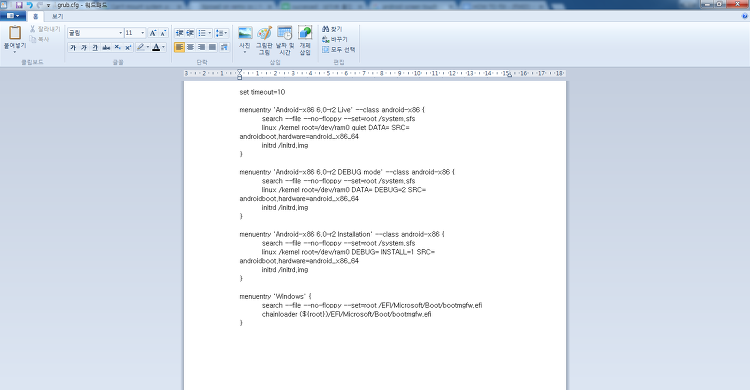
    3.  Edit grub.cfg file with (Wordpad/Notepad++) in [ USB drive/boot/grub/grub.cfg ]

    make sure add [ SRC= androidboot.hardware=android_x86_64 ]

    full code is here

    set timeout=30

    menuentry ‘Android-x86 6.0-r2 Live’ –class android-x86 {
    search –file –no-floppy –set=root /system.sfs
    linux /kernel root=/dev/ram0 quiet DATA= SRC= androidboot.hardware=android_x86_64
    initrd /initrd.img
    }

    menuentry ‘Android-x86 6.0-r2 DEBUG mode’ –class android-x86 {
    search –file –no-floppy –set=root /system.sfs
    linux /kernel root=/dev/ram0 DATA= DEBUG=2 SRC= androidboot.hardware=android_x86_64
    initrd /initrd.img
    }

    menuentry ‘Android-x86 6.0-r2 Installation’ –class android-x86 {
    search –file –no-floppy –set=root /system.sfs
    linux /kernel root=/dev/ram0 DEBUG= INSTALL=1 SRC= androidboot.hardware=android_x86_64
    initrd /initrd.img
    }

    menuentry ‘Windows’ {
    search –file –no-floppy –set=root /EFI/Microsoft/Boot/bootmgfw.efi
    chainloader (${root})/EFI/Microsoft/Boot/bootmgfw.efi
    }


    #61927
    _A-hin
    Participant
    • Posts: 8

    download mirek’s flash tool

    #61421
    _A-hin
    Participant
    • Posts: 8

    I would not say it’s “better”.

    you keep using that small battery icon if you want to.

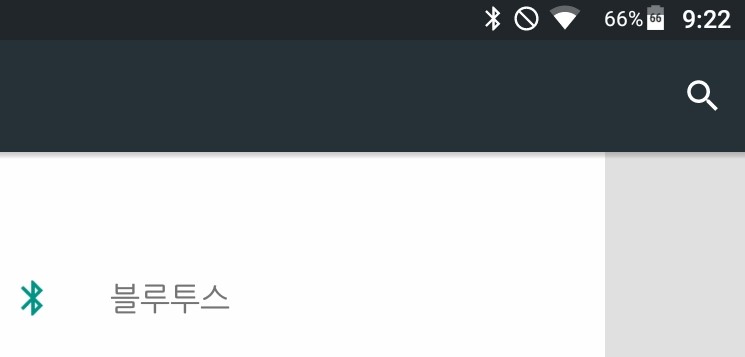
    I was totally aware of that app , but I gave up to use it

    cuz the number, the percentage in the icon, was too small to glimpse of.

    Attachments:
    You must be logged in to view attached files.
Viewing 5 posts - 1 through 5 (of 5 total)

Lost Password

Skip to toolbar