FBachofner

FBachofner

Forum Replies Created

Viewing 3 posts - 1 through 3 (of 3 total)
  • Author
    Posts
  • #183528
    FBachofner
    Participant
    • Posts: 3

    Sorry for this necropost, but it may still be helpful.

    Are you getting numbers and “functions” such as addition, subtraction, multiplication and division where you are expecting u, i, o, j, k, l etc?

    If so, your keyboard is fine and you have invoked the virtual ten-key number pad.

    See my help here: https://techtablets.com/forum/topic/help-laptop-keyboard-not-working-after-using-external-keyboard/#post-183527

    Good luck.

    #183527
    FBachofner
    Participant
    • Posts: 3

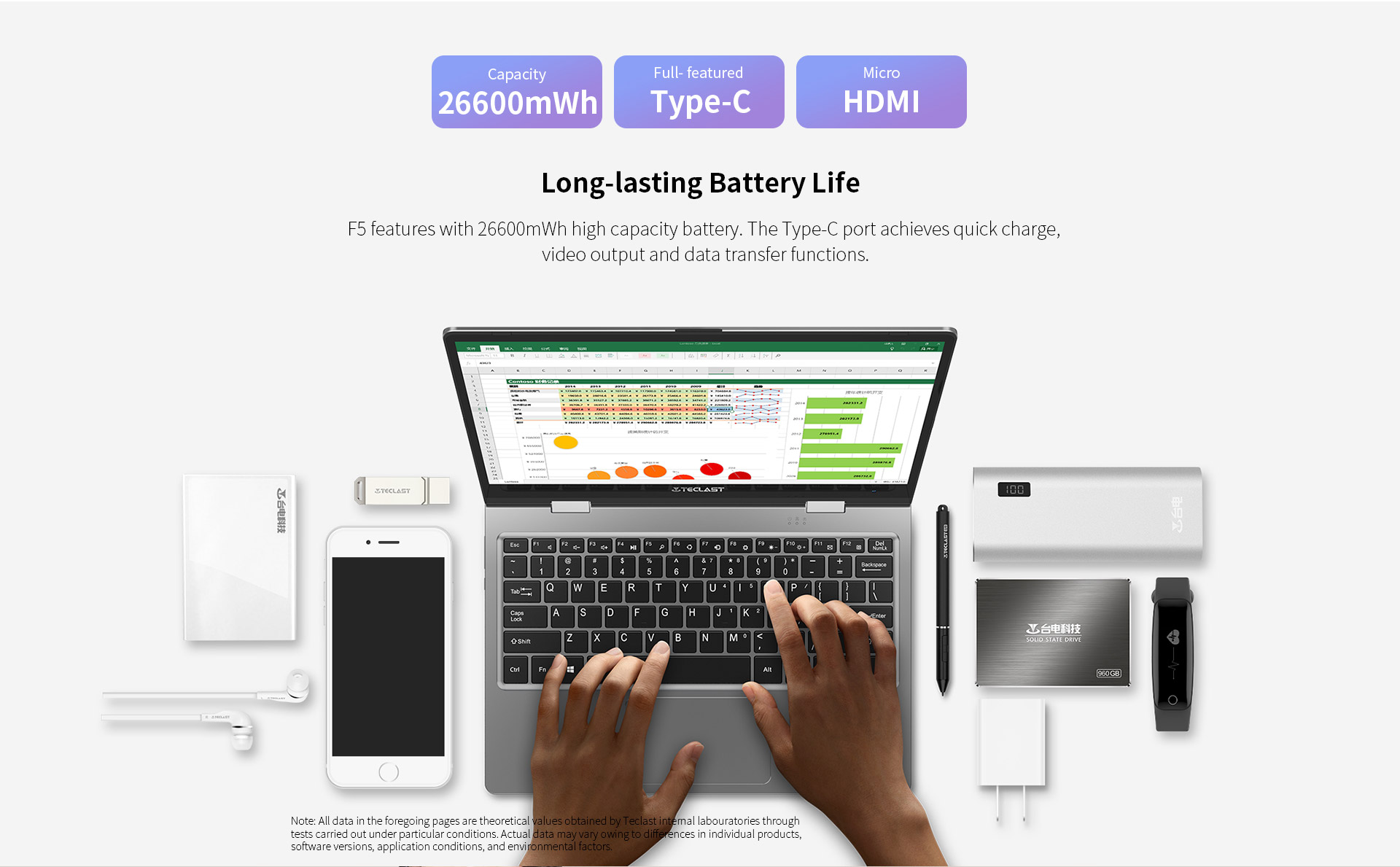
    If you take a good look at this photo from the official Teclast F5 page (http://www.teclast.com/en/zt/nb/F5/images/F5_zt_11.jpg):

    you can see smaller numbers and functions (i.e. *, /) in smaller size on the 8,9,0,i,o (obscured by finger),p,k, etc keys.

    I’d say my first “solution” is definitely the correct one.

    The Del key is also marked “numlock”  Try pressing Fn-Del to get back your “regular keyboard.

    Good luck!

    #183526
    FBachofner
    Participant
    • Posts: 3

    Hi Tara:

    Assuming the hardware did not somehow break (fairly unlikely from just plugging in an external keyboard), perhaps the keyboard “map” got changed somehow.

    The most likely situation is that you invoked the number pad “overlay” on your laptop keyboard.  Many laptops have a virtual “number pad” often approximately where the “u, i, o, j, k, l, m, “,”, and “.” keys are.  This helps with speedier “ten key” numeric entry.  [You will probably see a light blue, or perhaps green “overlay” printed with 0-9 on just those keys.]

    Your manual can tell you how to turn this on and off (it’s different for each type of laptop — usually accomplished with a hardware switch near or on the keyboard or with a Fn key).

    Or this external keyboard somehow changed the way the OS recognized the keyboard.  Depending on your OS, there are different ways of doing this.  In Windows you should be able to type “keyboard” after invoking the Start menu to see how to change the keyboard type.


    Good luck!

Viewing 3 posts - 1 through 3 (of 3 total)

Lost Password

Skip to toolbar